


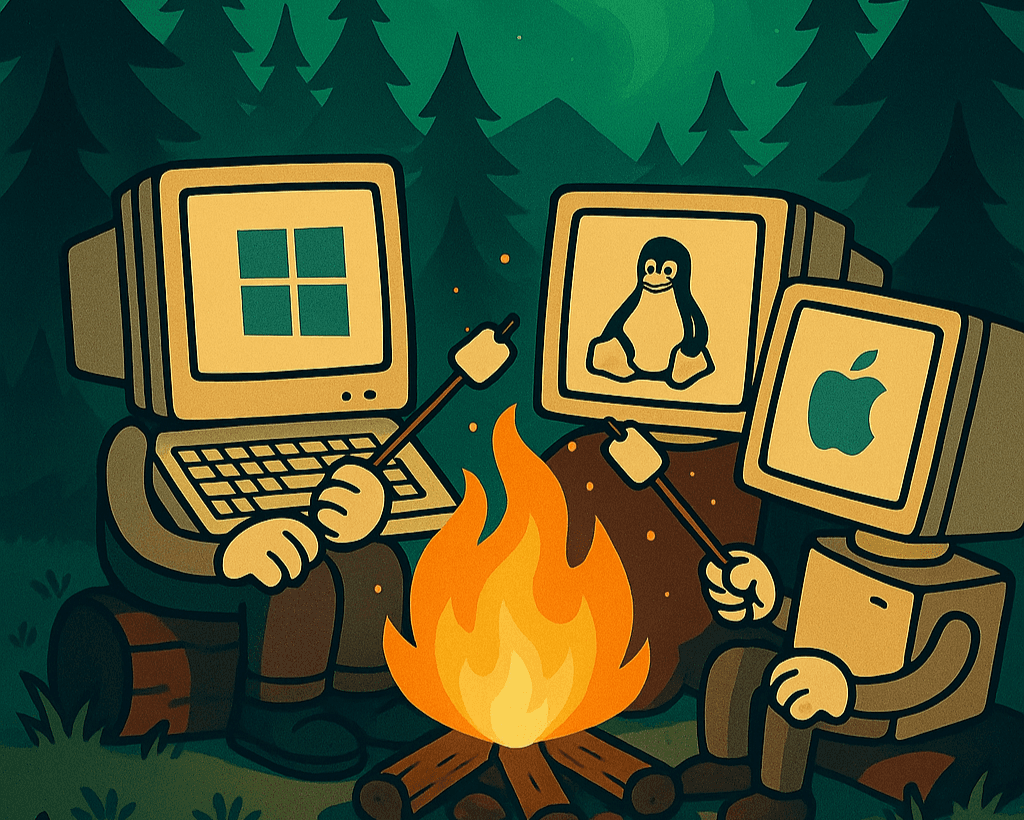
When you press the power button on your computer, the first thing that springs into action is your operating system - but what exactly is an OS, and why does it matter?
Let’s break it down.
What Is an Operating System?
An operating system (OS) is the main software that manages your computer’s hardware and software resources. It acts as the middleman between you (the user) and your computer's physical parts like the keyboard, screen, memory, and storage.
It handles:
- Running programs and apps
- Managing files and folders
- Controlling input (keyboard, mouse) and output (screen, audio)
- Managing memory and CPU usage
- Connecting to the internet or other devices
Without an OS, your computer would just sit there, totally unresponsive.
The Big Three Operating Systems
There are many operating systems out there, but three dominate the desktop and laptop world. Each has its own philosophy, strengths, and typical users.
1. Windows (by Microsoft)
- Most common on business and home PCs
- Most stable for gaming, though Linux is coming up
- Largest software library
- Paid (comes pre-installed or needs a license)
2. macOS (by Apple)
- Exclusive to Apple computers (MacBooks, iMacs)
- Known for sleek design and strong creative tools
- Excellent ecosystem integration
- Comes with Macs (not sold separately) and you can't typically install it on custom hardware
3. Linux (Open Source, many distributions)
- Free and open-source
- Extremely customizable
- Preferred by developers and tech-savvy users
- Many versions (called “distros”) like Debian, Arch, and Fedora
- Steeper learning curve but great control for power users
Installing a New Operating System
Want to try out a new OS or replace your current one? You can do it with just a USB stick and a little patience.
Installing a new OS will likely erase your existing data. Back up everything important!
What You’ll Need:
- A USB stick (8GB minimum depending on OS, 16GB+ preferred)
- A computer, to set up the installation drive and to install the OS on
- An OS image file (ISO) (e.g., from Ubuntu.com, Windows, etc.)
- A tool to create a bootable USB (like Rufus, Etcher)
Installing an OS with a USB Stick
1. Download the OS ISO
- Visit the official site of the OS you want (e.g., Ubuntu, Windows 11).
- Download the ISO file. It contains the whole operating system in one file.
Apple has their own process for installing macOS
Follow their guide to reinstall macOS on your machine. We also won't be covering how to make a Hackintosh here... Yet...
2. Create a Bootable USB
- Insert your USB drive.
- For best compatibility, format the drive
- On Windows, right click the drive and select 'Format'
- On Mac, use the Disk Utility under Apps > Utilities
- On Linux (switching distros?), use GParted or look up command line tools (hint:
mkfs)
- Use a tool like:
- Load the ISO file into your program of choice and choose your USB drive.
- Let the tool create a bootable USB. This may take a few minutes.
3. Boot from the USB
- Restart your computer.
- As it boots, press the boot menu key (usually
F12,Esc,F2, orDeldepending on your system). - Select your USB drive from the list.
4. Install the OS
- You’ll see an installer menu (e.g., “Try Ubuntu” or “Install Now”).
- Follow the on-screen instructions.
- Choose whether to replace the current OS or dual-boot.
- Select your drive, partitioning (if needed), username, and password.
- The installation can take 10–30 minutes depending on your system.
5. Reboot & Remove USB
- Once installation is complete, restart your computer.
- Remove the USB when prompted.
- Your new OS should boot up!
Getting Familiar With Your OS
Every OS does things a little different. If you aren't already, you'll need to become acquainted with how your particular installation handles the following things:
- System updates
- File management and operations
- Installing new applications
- Using a browser
- Personalizing the system
These are just a few of the interactions you should have with your system right out the gate, as you'll perform each many times.
Final Thoughts
Operating systems are the foundation of your digital experience. Whether you're sticking with what came on your computer or curious to explore something new like Linux, understanding the basics of OSes and how to install one gives you a whole new level of control and confidence.
A little too much? We are happy to help you answer any technical difficulty you come across. Contact us and we'll get back to you ASAP!